

Interface and Workbench
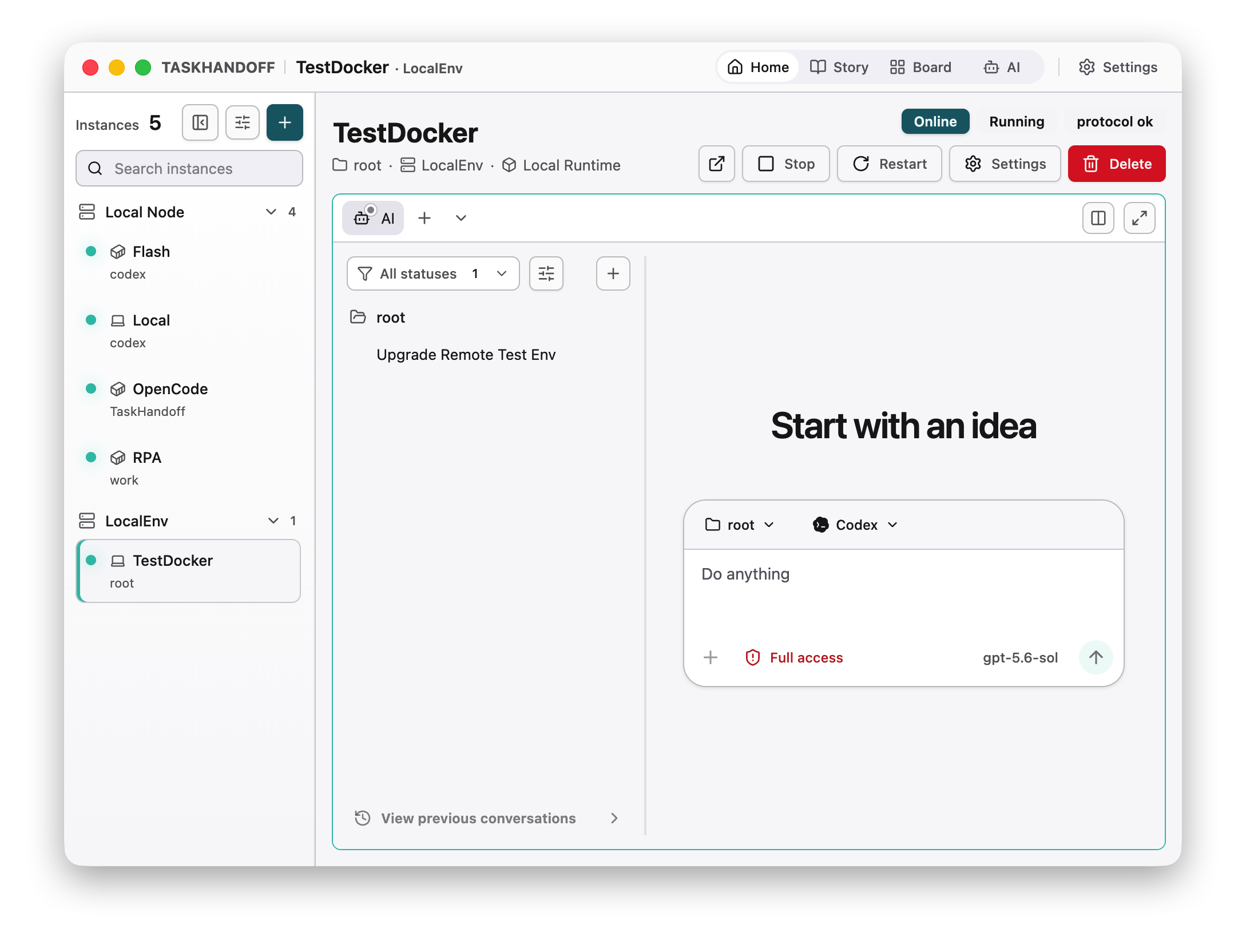
After sign-in, TaskHandoff opens its unified workbench. The top navigation switches product views, while the instance sidebar locates runtime environments.
Main Views
| View | Purpose |
|---|---|
| Home / Board | Browse instance cards and app previews by node, project, or status |
| AI | Monitor AI sessions across instances, especially active work and approvals |
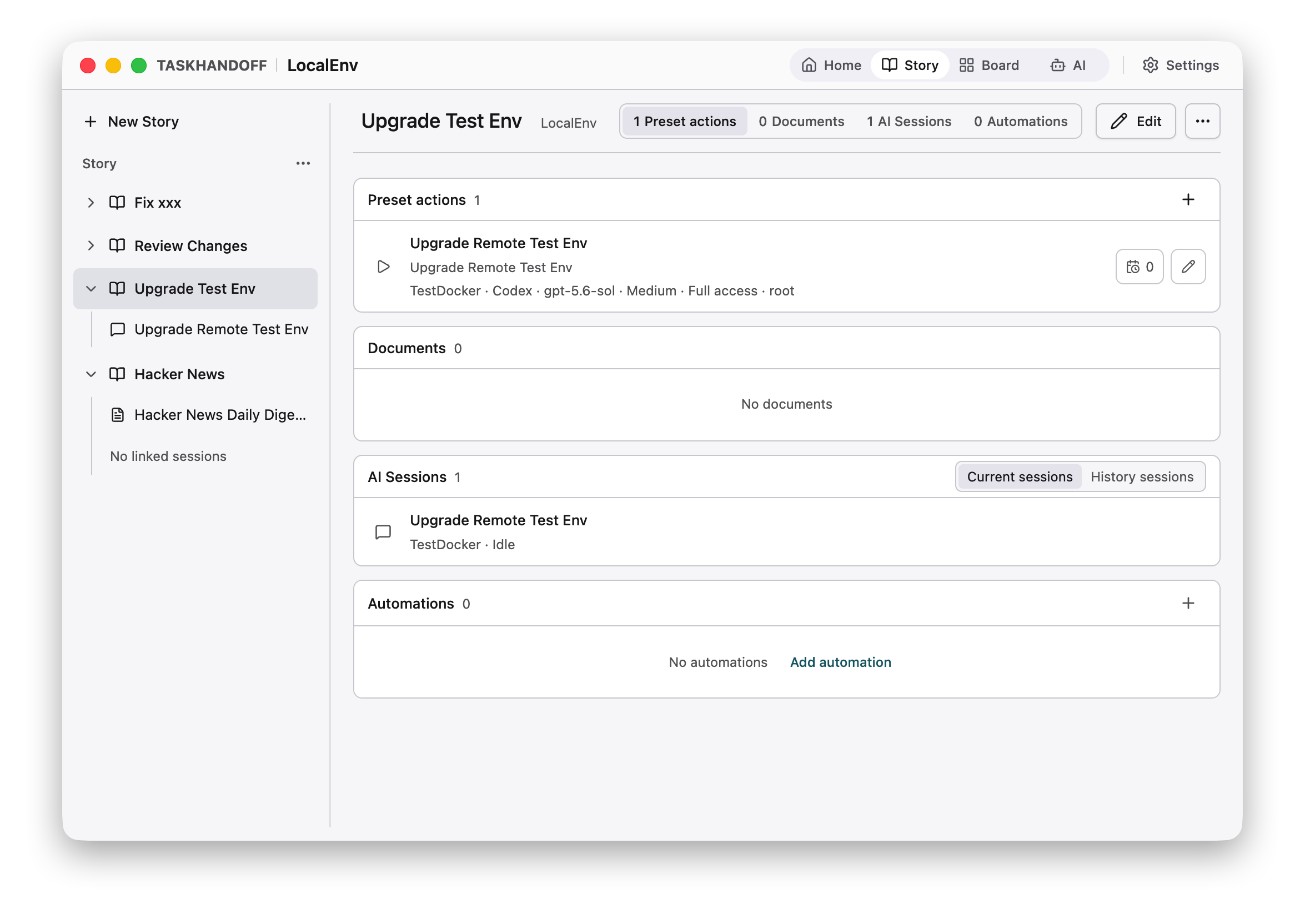
| Story | Organize documents, sessions, preset actions, and automation by goal |
| User | Account, device sessions, and personal settings |
| Approvals | Handle AI session approvals, operation approvals, and Story decisions; expandable from the top bar |
| Settings | Manage nodes, environments, models, credentials, users, and system options |
Instance Sidebar and Boards
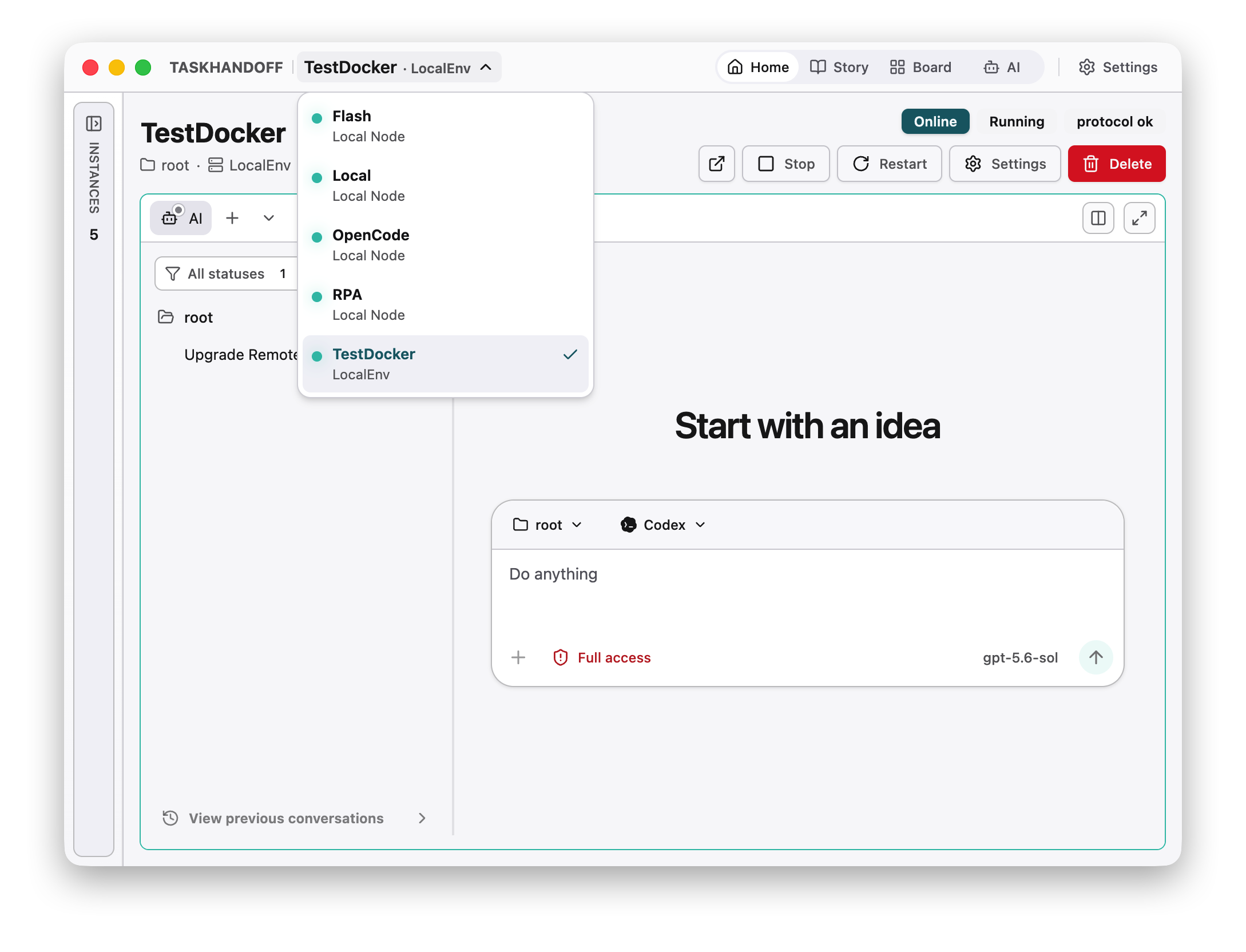
Search, sort, group, and resize the instance sidebar. Selecting an instance opens its AI and app sessions. Its menu provides lifecycle, settings, and deletion actions.
The instance board supervises multiple workspaces and supports filters, card sizes, app previews, and preview interaction. The AI board focuses on running, waiting, and failed AI sessions.
Sessions open in TaskHandoff's Compact mode by default, focusing on the current task turn and reducing interference from full message history. Switch to Conversation mode when the complete chronology is needed. See Use AI Sessions.
Approvals
The top-bar Approvals view collects the items that need you and lets you approve or deny each one:
- AI session approval: permission confirmations requested by an agent while it runs;
- Operation approval: high-privilege actions such as deleting an instance, removing a node, applying node updates, changing external listeners, changing user access or roles, updating identity providers, and assigning Git credentials;
- Story decision: a decision waiting for a human ruling in a Story.
An approval applies to that single request only; approving one does not authorize similar operations later. Items remain until handled, cancelled, or expired.
Instance Details
Instance details contain AI timelines, app sessions and terminals, browser previews, the current session repository environment, and runtime status. Desktop or popup-enabled browsers can open one dedicated window per instance.
Light and Dark Modes
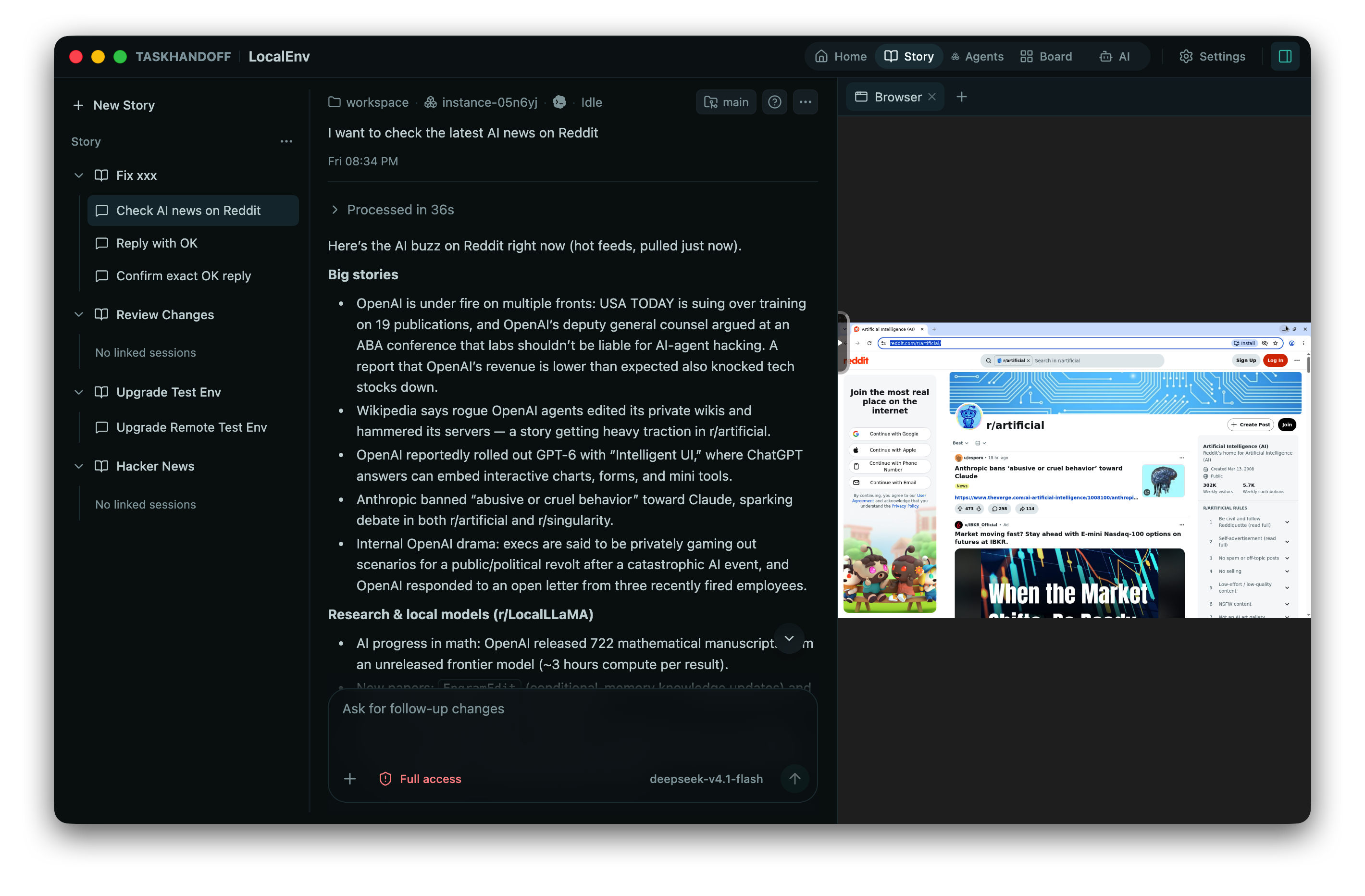
TaskHandoff provides both light and dark interfaces. Switch themes under Settings → Basic → Theme. The choice changes presentation in the current browser only; it does not affect instances, AI sessions, or server data.
Responsive Interface
Narrow screens collapse navigation into menus. The native mobile client has a different capability boundary; see the client capability matrix.