

Create and Manage Instances
An instance is the environment where TaskHandoff runs a project, applications, and AI sessions.
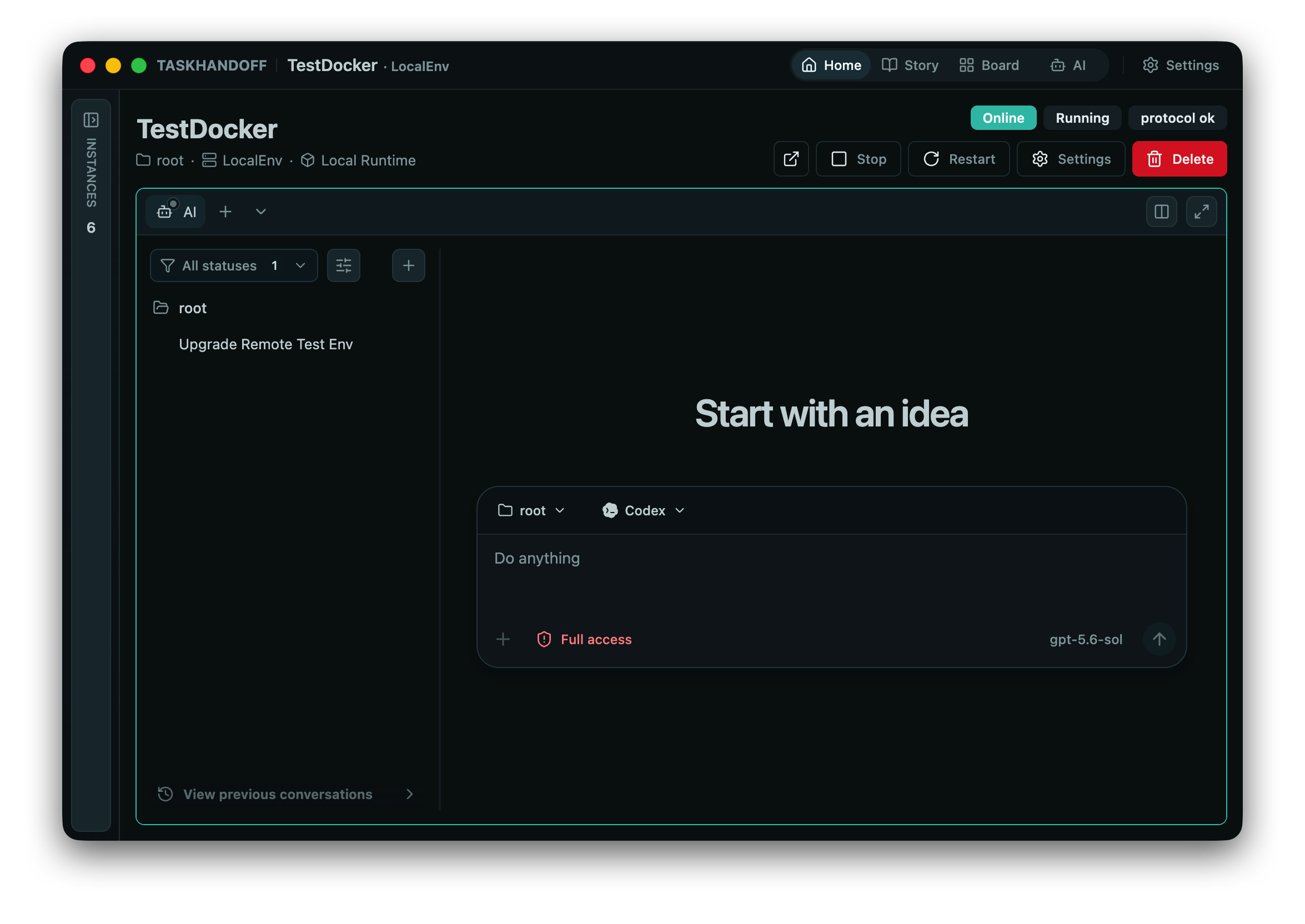
Create an Instance
Select New instance from the instance list.
Choose a Workspace
Use a registered Git repository, add a repository during creation, or select an existing local folder on the target node.
For a private Git repository, select a managed credential if needed. By default it authorizes only the initial clone. Enable Retain in this instance only when agents, terminals, apps, and later repository operations also need remote access.
Choose a Node and Runtime
| Runtime | Best for | Main constraint |
|---|---|---|
| Docker Runtime | Multiple isolated instances and team servers | Requires a working Docker daemon |
| Local Runtime | Direct access to host tools and folders | One local instance per host user |
A Docker instance also requires a market image, custom image, or environment template. The wizard checks Docker and reports whether the selected image needs to be pulled.
Model and Name
Select model providers for the primary Codex and OpenCode agents. The name is optional and can be generated from the project.
After confirmation, the instance moves through provisioning, starting, and registering before reaching Running. Expand image pull details when initial preparation takes time.
Routine Actions
The instance menu provides start, stop, restart, rename, settings, configuration import/export, environment template creation, close all sessions, and delete actions.
Some model and runtime changes take effect only after an instance restart.
Save an Environment Template
This captures installed software, system packages, and tools from the current Docker container. It may pause the source container briefly. A template is not a project backup and excludes workspaces, managed volumes, processes, and network state.
Delete an Instance
Data deletion is permanent
Delete instance data permanently removes all managed volumes, including /data, /home/agent, and the Git workspace. Commit or back up required work first.
When retaining data, record the volume names shown after deletion. TaskHandoff does not attach them to future instances automatically.
Status Reference
| Status | Meaning |
|---|---|
| Created | The instance record exists but is not running |
| Provisioning | The runtime image is being checked or pulled |
| Starting / Registering | The runtime is connecting to the control plane |
| Running | Apps and AI sessions can be started |
| Stopped | Work is stopped and can be started again |
| Unhealthy / Failed | Inspect the runtime, node connection, and error details |
An offline node may leave cached instance status in the UI. Restore the node connection before deciding that an instance has stopped.