
Apps and Terminal
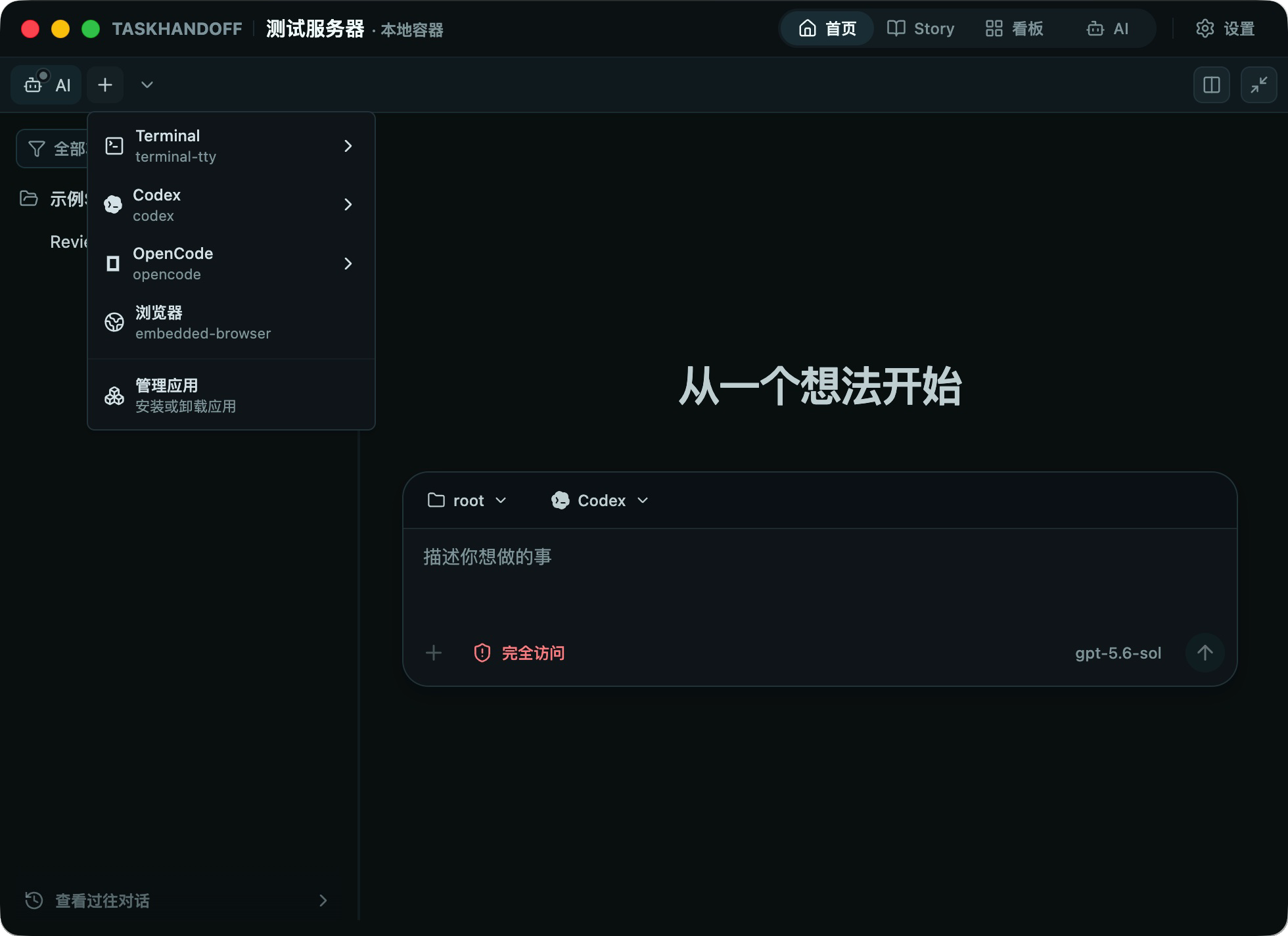
TaskHandoff primarily provides AI work through Codex and OpenCode, and can also launch Terminal, VS Code, Browser, and other supported apps. Availability depends on the instance image, platform, and capabilities.
Launch an App
- Confirm that the instance is running.
- Open its action menu and select Launch app.
- Choose an app and working directory.
- Wait for the app session, then open it from instance details.
AI and app sessions each retain their actual working directory. Repository views use the directory of the session currently open.
Managed Apps
Open Instance settings → Apps to inspect the trusted built-in catalog. Platform capability determines whether an app can be installed, uninstalled, launched, or is unsupported. Management jobs report their phase, progress, and terminal output.
Initial dynamic installation primarily supports GUI Terminal and Chromium on compatible Linux instances. Codex, OpenCode, and other environment-provided tools are normally detected and launched from inventory.
Uninstall removes only files owned by the managed installation. User configuration, home data, workspaces, and AI sessions are preserved. An app with active sessions cannot be uninstalled.
Terminal and Browser
Use the terminal to install project dependencies, run tests, inspect full logs, execute advanced Git operations, and verify AI changes. Understand commands before pasting them, especially destructive commands or commands that print environment variables.
Use the embedded browser to preview web apps running in the instance. Closing a UI tab does not necessarily stop its process; explicitly terminate unused app sessions to release resources.