

Use AI Sessions
An AI session runs one AI task in an instance and a fixed working directory.
TaskHandoff primarily supports Codex and OpenCode. Choose the agent first, then a compatible model. See Codex and OpenCode for capability differences.
Start a Session
- Open a running instance.
- Select New AI session.
- Choose an agent, model, and working folder.
- Set reasoning effort and permission mode.
- Enter the task and send it.
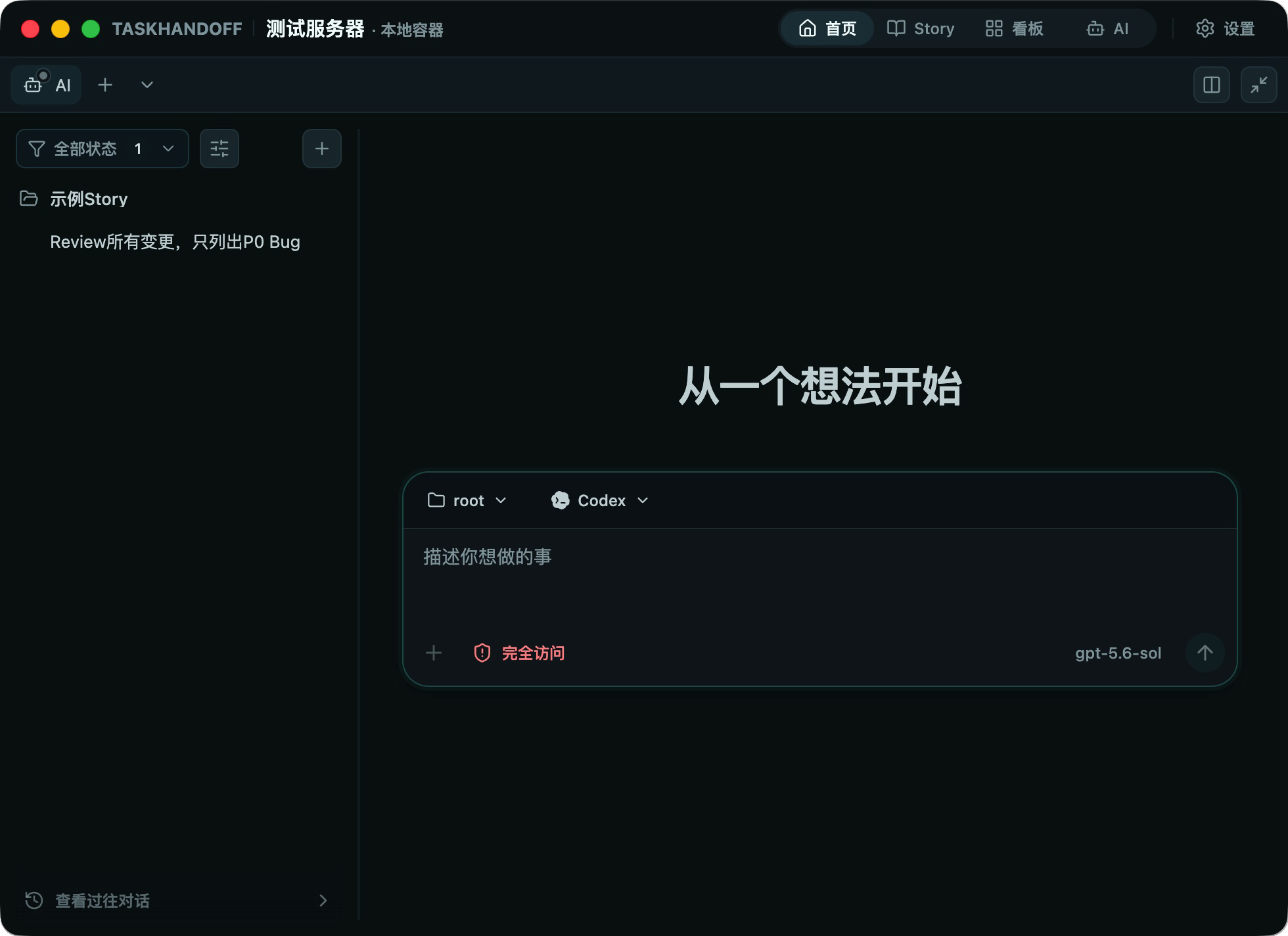
The working directory does not change after creation. To work in another worktree, create a new session from that worktree in the repository environment.
Permission Modes
- Ask requires explicit approval for sensitive operations and is the recommended default;
- Auto review reduces approval interruptions and should be used only in a trusted workspace;
- Full access permits broader file and system operations and belongs only in isolated, recoverable environments.
Least privilege
Keep Ask when uncertain. Do not grant full access in an environment containing production credentials, personal files, or important unbacked-up data.
Messages and Progress
The composer supports text, commands, context mentions, and attachments. A message sent while the agent is working can be delivered immediately, steered into the current task, or queued, depending on the selected mode.
The timeline shows user messages, AI responses, reasoning and tools, file edits, approvals, sub-agents, and final results. Stopping a run does not undo file changes already written to disk.
During a reconnect, TaskHandoff reloads the authoritative session snapshot. A temporary Reconnecting state does not imply that the background task stopped.
Compact and Conversation Modes
AI session details provide Compact and Conversation viewing modes from the session's More menu.
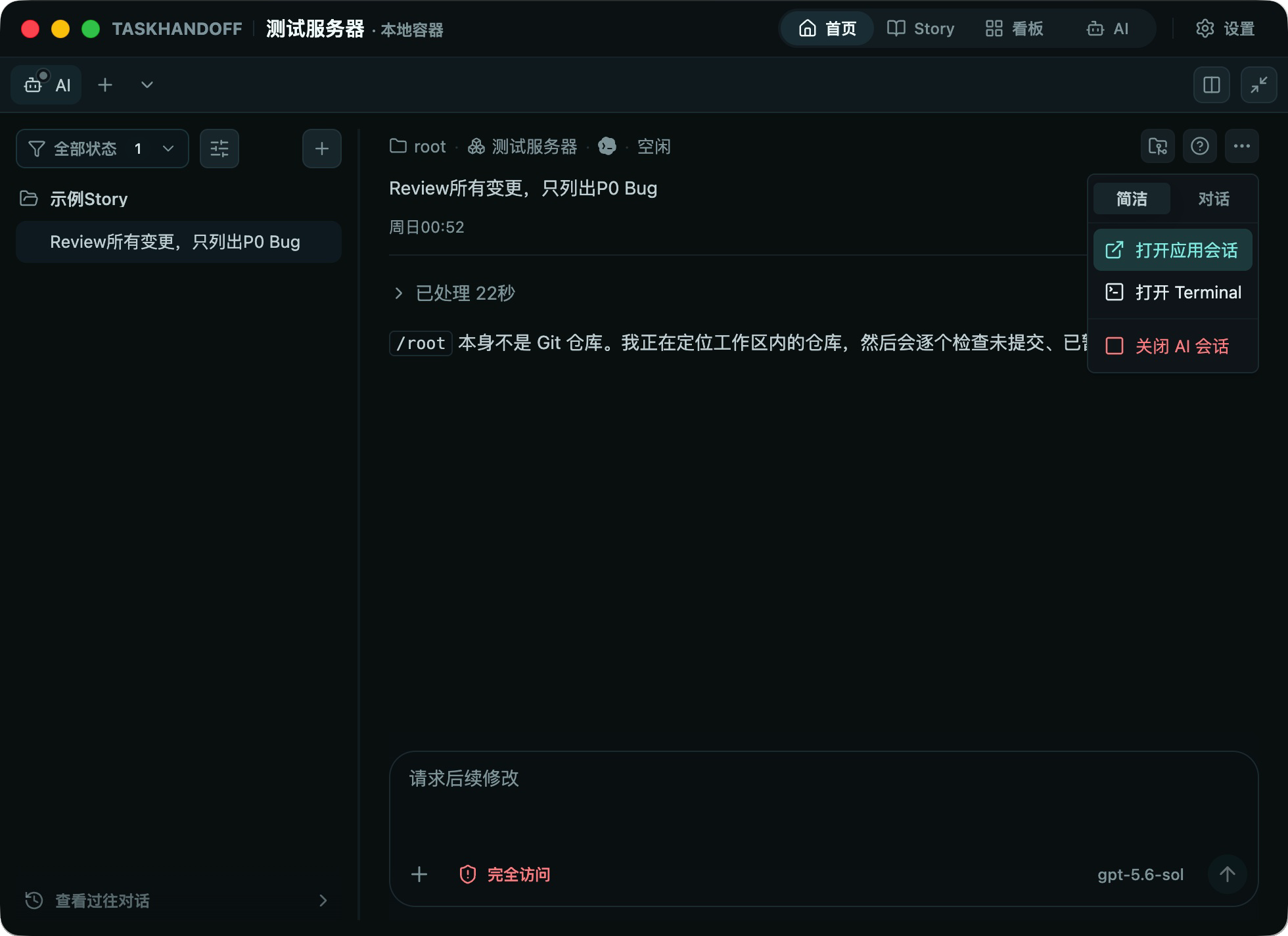
TaskHandoff feature: Compact mode
Compact mode is TaskHandoff's default and distinctive session experience. It focuses on one selected task turn and keeps only the prompt, AI response, live tool activity, approvals, queue, and sub-agent state needed for the current decision. This greatly reduces interference from long histories and repetitive process messages.
Compact Mode
Compact mode is designed for daily work and supervising several AI tasks:
- It shows the selected turn instead of expanding the entire history;
- Current tools, edits, approvals, and queued messages remain visible;
- You can move between turns when an earlier result is needed;
- Long sessions do not push current work behind large amounts of history.
Compact mode does not summarize away or delete server-side session data. The complete history remains available in Conversation mode.
Conversation Mode
Conversation mode presents user messages, AI responses, and per-turn activity in chronological order. Use it to reconstruct a task, find an earlier prompt or result, audit approvals and retries, or understand context across multiple turns.
The selected mode is stored in the current browser and reused for other sessions. It changes presentation only, not Codex/OpenCode execution, model context, or files on disk.
Manage Sessions
Session lists mark unread AI sessions so you can quickly find work that needs attention. Switch sessions from the instance sidebar, AI board, or Story. Closing a session stops its active work. Close all sessions affects every session on the current instance.
Instance AI settings define session defaults. Codex adds managed response detail, personality, and multi-agent settings; OpenCode uses its own model variants and permissions. Changes do not rewrite existing sessions.
Recommended Practice
- State the goal, constraints, and acceptance criteria;
- Break large work into verifiable stages;
- Verify actual file changes and test output;
- Review repository changes before committing or publishing;
- Save important results in project files or Story documents, not only chat history.